



Odoo Office 365 Integration: Sync Email, Calendar, Contacts and Tasks Without Double Entry
Odoo
5 MIN READ
March 31, 2026

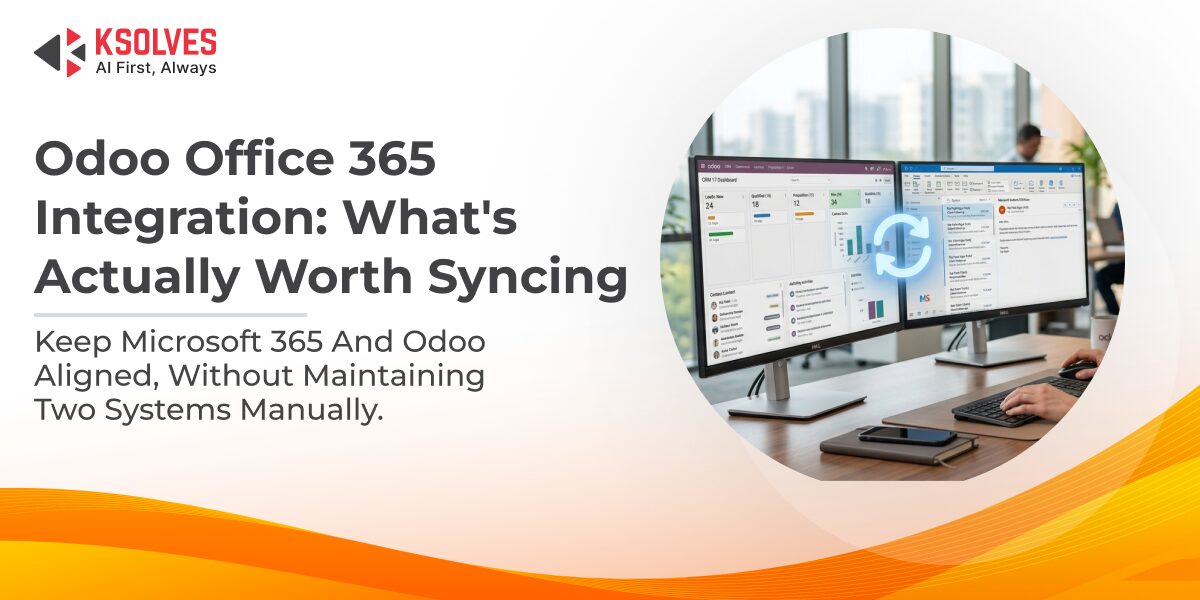
Most teams running Odoo alongside Microsoft 365 end up working across two systems that don’t know about each other. A contact gets updated in Outlook but not in Odoo. A meeting gets scheduled in one calendar but not the other. Tasks exist in both places with no connection between them. The Odoo Office 365 integration addresses this directly, by keeping Odoo and Microsoft 365 in sync so your team stops bridging the gap manually.
This post walks through how the Ksolves Office 365 Connectors suite works, what each module does, and the practical details worth knowing before you set it up.
Three Places Data Slips Through the Cracks Between Odoo and Microsoft 365
Emails that stay in the inbox and never reach Odoo
When a client replies to an email in Outlook, that reply lives only in the inbox. If it’s relevant to an open opportunity, a support case, or an invoice, someone has to manually note it in Odoo, or it never gets there. Over a busy week, the Odoo record of a customer relationship becomes incomplete even when the actual conversations are happening regularly.
Calendar events that only exist in one system
A meeting created in Odoo doesn’t appear in the team’s Office 365 calendar, and one booked through Outlook doesn’t reflect in Odoo. The result is people maintaining two calendars, checking both before scheduling, and often still missing conflicts. It’s low-stakes when it’s occasional, it compounds fast when it’s routine.
Contacts that go stale on one side
Without Odoo contacts sync, an update on one platform stays there. Someone changes a customer’s phone number in Outlook. Three weeks later, a colleague runs communication from Odoo using the old record. There’s no system error, just quietly unreliable data.
Also Read – Business Digest: 4 Key Benefits of Odoo Office 365 Connector
What the Ksolves Office 365 Connectors Module Actually Does
The suite is built on the Office 365 Base module, which handles authentication, Single Sign-On via Client ID, Client Secret, and Redirect URL registered through Azure Portal. You authenticate once; all installed connector modules share the same session. The Base module also provides the central logs view where sync activity across all modules is tracked and searchable in one place.
From there, each sync type is a separate module. You install only what your team needs.
Odoo mail sync with Outlook
Mail sync runs bi-directionally between Outlook and Odoo Discuss, you can push mails from Office 365 to Odoo or from Odoo to Office 365, both directions available with a single click. Synced mails land in the corresponding Odoo Discuss inbox channel. For incoming mail from Outlook, you can apply a folder-wise filter to pull only mail from specific Outlook folders, useful when you want to sync a dedicated client folder rather than your entire inbox. You can also import mails from particular Outlook categories. Both filters apply to the Outlook-to-Odoo direction only. Manual sync and cron-based automatic sync are both available, with a configurable time interval on the cron job.
Odoo Calendar Sync with Microsoft 365
Odoo events sync to Outlook and Outlook events sync back to Odoo. You choose key fields to uniquely identify each event and avoid duplicates, and can limit sync to only the most recent events by specifying a day range. A domain filter lets you control which Odoo events are pushed to Outlook. One setting worth enabling early is Realtime Event Syncing: when turned on in Office 365 Settings, any calendar event created in Odoo is pushed to Microsoft Outlook immediately without waiting for a manual trigger or cron run. Manual sync and cron-based automatic sync remain available alongside it. Note: timezone must be correctly set in your Odoo user preferences for event timings to match across both platforms.
Odoo contacts sync with Outlook
The Office 365 Contacts module lets you choose sync direction with a simple click, Odoo to Outlook, Outlook to Odoo, or both ways. You can configure which fields are used as unique identifiers to avoid duplicates, sync only the most recent contacts by specifying a day range, and apply domain filters to control which Odoo contacts are pushed to Outlook. Detailed sync logs are available for every operation, with advanced search and filter to trace specific records. The module also supports resuming a sync from where it last stopped, useful when dealing with large contact lists.
Tasks sync
The Tasks module syncs Odoo scheduled activities with activity type ‘To Do’ to Outlook tasks , bi-directionally. You can limit sync to tasks within a specified number of days rather than pulling everything across. If a sync run fails partway through, the Jobs view lets you resume from the last successfully processed record rather than restarting from scratch, the same resume capability available in the Contacts module.
A unified console for everything
All installed modules are managed from a single Office 365 interface inside Odoo, no switching between separate settings pages. Logs from every sync operation appear in one view, with search and filter available to track what ran, when, and what the outcome was.
Why the Modular Structure Matters
Most connector solutions bundle everything into a single install. The Ksolves Office 365 Connectors suite works differently, each sync type is independent. If your team only needs Odoo calendar sync and contacts sync, you install those two modules and the Base. You’re not configuring or maintaining sync logic for features you’re not using.
As your needs grow, you add modules. The Base handles authentication for all of them, and the unified console means there’s no fragmented admin experience regardless of how many modules are active. You can read more about the original connector approach in the earlier Ksolves overview: Odoo Office 365 Connector: Easy Office 365 Integration.
Odoo Gmail Integration: For Teams on Google Workspace
For teams using Google Workspace rather than Microsoft 365, the Odoo Gmail integration covers the core bases natively: sending mail through Gmail via OAuth and syncing with Google Calendar. Teams that need the same kind of structured contact management and centralized sync logging that the Office 365 Connectors provide will typically need to look beyond the native setup. The operational logic is the same, two platforms, one sync layer, no manual bridging.
A Few Things to Know Before You Configure
Authentication requires Azure Portal setup
The Office 365 Base module authenticates via Microsoft Entra ID (formerly Azure AD). You register an app in Azure Portal, generate a Client ID and Client Secret, set the redirect URI, and configure Microsoft Graph API permissions with ReadWrite access. The Odoo admin pastes these credentials into the Office 365 Settings page inside Odoo and generates a token. Non-admin users can sync records once the manager has authenticated, they don’t each need to repeat the Azure setup. Token expiry is handled with a single re-login click.
Sync direction is configurable, not forced
For contacts, you choose the direction per sync operation. If Odoo is your system of record, you can push from Odoo to Outlook without pulling Outlook changes back. The module’s filter and direction settings give you control rather than defaulting to full bi-directional on every sync.
Scheduled vs. manual sync
Cron-based automatic sync keeps data aligned without manual intervention, useful once the integration is stable. Manual sync is valuable during the initial setup phase and when you need to force an immediate update after a bulk change. Both options are available; you’re not choosing one permanently.
For a practical walkthrough of real-world use cases and setup, the 4 Ways To Use Odoo Office 365 Connector post covers how different business types have applied the integration.
Getting Started
The Ksolves Office 365 Connectors suite is compatible with both Odoo Community and Enterprise, across versions 11.0 through 19.0. A live demo environment is available before purchase. Free support periods vary by module – check individual product pages on the Ksolves Store for details.
If your team is maintaining Odoo and Microsoft 365 as two separate systems today, the Office 365 Connectors suite is the practical fix, install the modules you need, authenticate once, and manage everything from a single console inside Odoo.
Explore the full suite on the Ksolves Store or reach out to the Ksolves team at [email protected].

































AUTHOR
Odoo
Neha Negi, Presales and Business Associate Head at Ksolves is a results-driven ERP consultant with over 8 years of expertise in designing and implementing tailored ERP solutions. She has a proven track record of leading successful projects from concept to completion, driving organizational efficiency and success.
Share with