



6 Things Odoo’s Default List View Won’t Let You Do and How to Fix Them
Odoo
5 MIN READ
October 13, 2026


Odoo’s List View gives users a straightforward way to browse and manage records. But when teams work with hundreds or thousands of records every day, basic list-view functionality can start creating friction.
You may need to reorganize columns for your role, search within specific fields, copy values without opening records, or perform actions on multiple records at once.
This is where List View Manager helps. It enhances Odoo’s standard List View with practical controls for customizing, searching, navigating, and working with records more efficiently.
1. Customize Columns Without Changing the View for Everyone
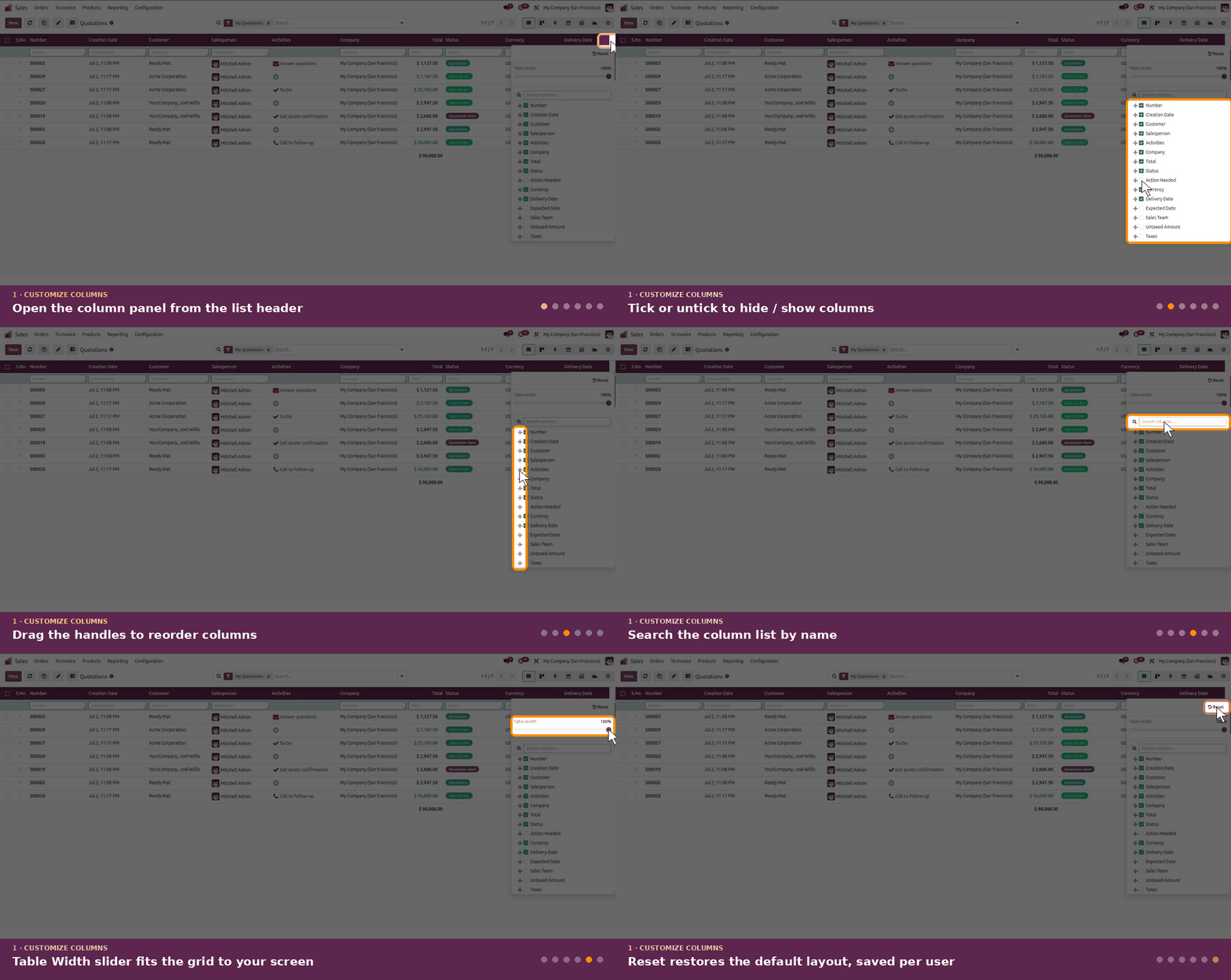
Different Odoo users often need different information from the same list view.
A sales user may want customer, quotation, salesperson, and order information visible. An operations user may care more about delivery, warehouse, and inventory-related fields.
With a standard list view, making changes to the view can require technical configuration and may not provide the individual flexibility users need.
How List View Manager Fixes It
List View Manager provides Dynamic List functionality that lets users customize their list views directly. Users can:
- Hide or show columns.
- Reorder columns using drag and drop.
- Rename columns.
- Search columns.
- Restore the default list view.
- Save their settings automatically per user.
This lets each user organize the information they see without needing the same layout for everyone.
Also Read: How does List View Manager optimize CRM Data Handling?
2. Search Directly Where the Data Is

Finding a specific record becomes more challenging as your Odoo database grows. You might know exactly which field contains the value you’re looking for, but moving between the list view and standard search options can add extra steps to a routine task.
List View Manager adds column-specific search to make this process more direct.
How List View Manager Fixes It
With its Advanced Search functionality, users can search for specific values within columns directly from the list view.
It also supports searching on:
- Regular list-view fields.
- Many2one fields.
- Many2many fields.
- Grouped records.
Users can combine Odoo’s default search functionality with List View Manager’s column-level search to narrow down relevant records more efficiently. For teams working with large datasets, this can make everyday record discovery much more convenient.
Find the Information You Need Faster
Instead of treating the list view as something you simply browse, List View Manager makes it a more active workspace for finding information.
Also Read: How Human Resources Department can Employ List View Manager?
3. Keep Your Column Widths the Way You Want Them

Have you ever adjusted a column because the values were getting cut off, only to find yourself adjusting it again later?
When working with names, references, descriptions, or other longer values, the default column width may not always provide the visibility you need.
How List View Manager Fixes It
List View Manager lets users resize columns directly within the list view. More importantly, the customized column width can be retained when the view is reopened.
This means users can create a layout where important information is easier to read without repeatedly resizing columns.
A More Practical List View
Instead of constantly adapting the interface to your data, you can adjust the list view around the way you work.
Set your columns once. Keep the layout that works for you.
See How an E-commerce Company Achieved 60% Faster Data Access with List View Manager
4. Copy Field Values Without Opening Every Record

Sometimes you don’t need to edit or review an entire record. You just need one value from it.
For example, you may need to copy a reference or another visible field value and use it somewhere else. Opening the record just to copy that one piece of information adds an unnecessary step.
How List View Manager Fixes It
List View Manager lets users copy field values directly from the List View without opening the individual record. This can be useful when users repeatedly need visible information from multiple records.
Instead of:
Find record → Open record → Locate field → Copy value → Go back
Users can work directly from the list:
Find record → Copy value
It’s a small change, but repeated across daily workflows, fewer clicks can make list-based tasks more efficient.
5. Duplicate Records Directly From the List View

Duplicating an Odoo record can also involve unnecessary navigation when you’re already looking at the relevant records in a list. When multiple records need to be duplicated, opening them one by one can become especially repetitive.
How List View Manager Fixes It
List View Manager allows users to duplicate records directly from the Tree/List View. Users can duplicate multiple records simultaneously with a single action instead of opening each record individually.
This is particularly useful when duplication is part of a recurring operational workflow.
Fewer Clicks for Repetitive Tasks
The idea is simple: if you’re already managing records from the list view, you should be able to perform relevant actions there.
List View Manager brings duplication closer to where users are already working.
Also Read: Effortless Data Management for Financial Institutions with List View Manager
6. Make Large Lists Easier to Scan and Navigate

The larger your dataset becomes, the more important simple visual cues become.
When a list contains dozens, hundreds, or thousands of records, users need to quickly identify rows, understand where they are, and move through the data without unnecessary friction.
How List View Manager Fixes It
List View Manager adds several usability features that make list views easier to work with:
- Serial Numbers: Enable serial numbers for records to make rows easier to identify and track.
- Record Highlighting: Hover over a record to highlight its row, making it easier to follow information across columns.
- Quick Data Reload: Reload list data using the refresh option without refreshing the entire page.
- Customizable Columns: Show the fields you need and hide the ones that aren’t relevant to your workflow.
- Resizable Columns: Adjust column widths to improve readability.
Together, these features make the list view more practical for users who spend a significant part of their day working with Odoo records.
List View Manager: More Ways to Take Control of Odoo List Views
The six capabilities above are only part of what List View Manager brings to Odoo. The app also provides additional controls for tailoring the list-view experience, including:
- Enable or disable serial numbers.
- Customize interface colors.
- Search within grouped data.
- Restore the default list configuration.
- Save list-view settings per user.
- Search Many2one and Many2many fields.
- Hide, show, rename, and reorder columns.
- Bulk Edit Records

- LVM in Embedded Lists

- Configurable Behavior

The result is a List View that can be adapted around the user’s workflow rather than forcing every user to work with the same presentation of data.
Why List View Manager?
Odoo’s default List View provides the foundation for working with records. List View Manager builds additional productivity features around that foundation.
- Personalize Your List Views
Give users control over which columns they see and how those columns are arranged. - Find Records Faster
Use column-level and advanced search to locate relevant information more efficiently. - Reduce Unnecessary Clicks
Copy values and duplicate records directly from the List View. - Preserve Your Preferences
Save column arrangements and sizing so users don’t have to repeatedly configure their workspace. - Improve Everyday Usability
Use serial numbers, row highlighting, column resizing, and quick data reloads to make large datasets easier to navigate.
Ready for a More Flexible Odoo List View?
Final Words
Odoo’s default List View is useful for browsing and managing records, but everyday workflows can demand more flexibility. When users constantly adjust columns, search through large datasets, open records for simple actions, or repeat the same navigation steps, those small inefficiencies can add up.
List View Manager gives users more control over how they view, search, and interact with Odoo records, helping turn the standard List View into a more flexible and user-friendly workspace.
Ready to make your Odoo List Views work the way your team works?
Book a demo of List View Manager today.


































AUTHOR
Odoo
Neha Negi, Presales and Business Associate Head at Ksolves is a results-driven ERP consultant with over 8 years of expertise in designing and implementing tailored ERP solutions. She has a proven track record of leading successful projects from concept to completion, driving organizational efficiency and success.
Share with