



ERPNext Payment Reconciliation Process: Complete Guide
ERPNext
5 MIN READ
July 10, 2026

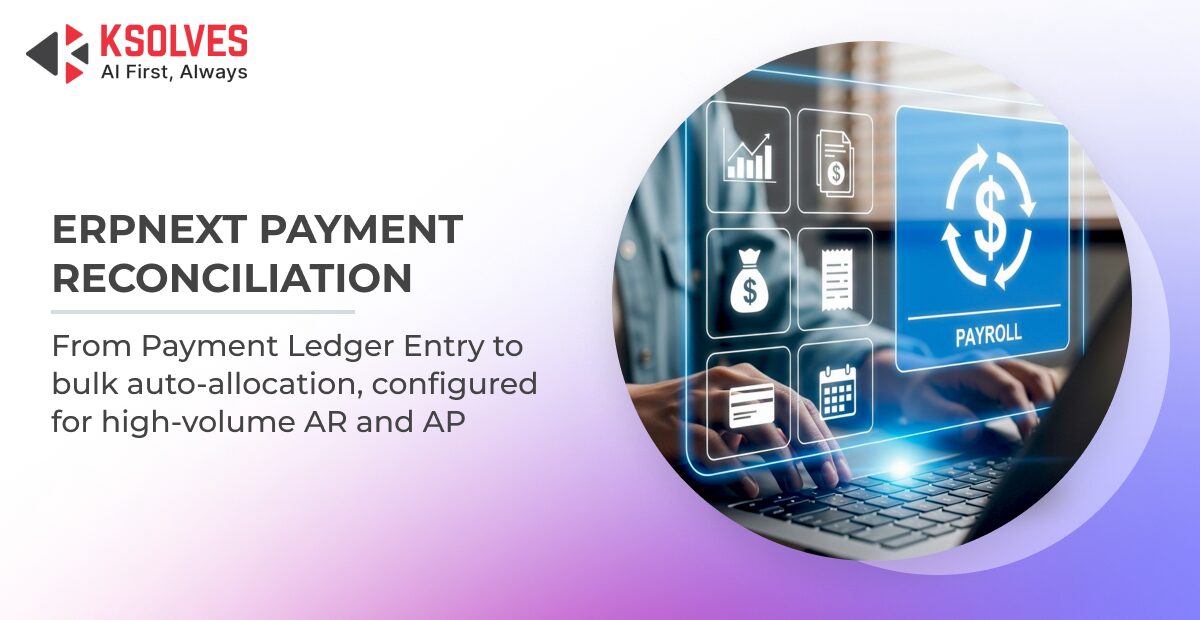
Most ERPNext finance teams configure payment entries correctly and still end up with a reconciliation backlog. The bank shows funds received. The payment entry is submitted. But the invoice stays open, the ageing report shows outstanding, and someone spends the last two days of the month manually hunting down what belongs where.
Payment reconciliation in ERPNext, sometimes called invoice reconciliation since the end goal is clearing what a specific invoice still owes, is a separate step from recording a payment. Most ERPNext implementation services treat it as an afterthought rather than a configured part of the broader ERP payment workflow. At high volumes, that gap compounds fast.
Note on version compatibility: The architecture described in this guide applies to ERPNext v14 and above. The v14 release replaced the older outstanding_amount field on GL Entry with the Payment Ledger Entry DocType, a fundamental architectural change. Users on v13 will encounter a different reconciliation UI and tooling.
What Is the Payment Reconciliation Process in ERPNext?
Payment reconciliation in ERPNext is the process of matching submitted Payment Entries (or Journal Entries) to open Sales Invoices or Purchase Invoices for a given party, sometimes described as invoice reconciliation since the invoice is the record being cleared. It is a distinct step from recording a payment, and it is the step that clears the outstanding amount on an invoice.
When a Payment Entry is created directly against an invoice at the time of payment, ERPNext reconciles immediately, and the invoice outstanding drops to zero. This works for clean one-to-one payment matching scenarios. For high-volume operations where payments arrive in batches, as advances, or as a single transfer covering multiple invoices, the matching step is deferred. The Payment Reconciliation tool is where that deferred payment matching happens.
The key distinction that trips up most ERPNext users: bank reconciliation in ERPNext and payment reconciliation are two separate processes.
Core documents in every payment reconciliation cycle:
- Sales Invoice / Purchase Invoice: the receivable or payable document
- Payment Entry: the cash or bank movement record
- Journal Entry: used for advances, write-offs, and adjustments
- Payment Ledger Entry: the Frappe DocType introduced in ERPNext v14 that tracks outstanding amounts per party, account, and invoice. This is the source of truth for AR and AP ageing reports.
- Bank Transaction: the imported bank statement line, reconciled through bank reconciliation separately
How the Payment Reconciliation Process Works Step by Step
Step 1: Invoice Submission and GL Posting
A submitted Sales Invoice creates a GL Entry debiting Accounts Receivable. The outstanding amount is recorded in the Payment Ledger Entry DocType against that specific invoice.
Before running the reconciliation tool, use the Unreconciled Payment Entries report under Accounts to scope the current backlog by party and date range. This surfaces all unmatched advances without needing to open the full reconciliation tool first.
Step 2: Payment Entry Creation
When a payment is received, a Payment Entry is created under Accounts > Transactions > Payment Entry. If the accountant links it directly to an invoice at this stage, and the account on the Payment Entry matches the Receivable/Payable account on the invoice, ERPNext reconciles on submit. For high-volume environments, payments are often posted against the party and left as unallocated advances.
Step 3: Running the Payment Reconciliation Tool
Navigate to Accounts > Payment Reconciliation. Set the required filters:
- Company and Party Type (Customer for AR, Supplier for AP)
- Party name
- Receivable / Payable Account (must match the account on the invoice)
- Date range to scope which invoices and payments to fetch
Click Get Unreconciled Entries. ERPNext queries the Payment Ledger Entry DocType and returns unmatched invoices on one side and available Payment Entries or Journal Entries with outstanding advance amounts on the other.
Select the payments and invoices to match, the core payment matching step in the tool. Click Allocate, then Reconcile. ERPNext posts the allocation, updates the outstanding, and marks the invoice Paid if the full amount is covered. Partial allocation is supported: a single payment can be split across multiple invoices, and multiple payments can be applied to one invoice.
Accounts Receivable Reconciliation vs Accounts Payable Reconciliation
The payment reconciliation process, ultimately a form of invoice reconciliation on both sides of the ledger, works identically for both AR and AP. The only difference is the Party Type filter and which account is selected.
Accounts receivable reconciliation (Party Type = Customer):
- Matches customer payments and credit notes against Sales Invoices
- Clears advance receipts from customers who pay before an invoice is raised
- Resolves partial payments on high-value invoices
Accounts payable reconciliation (Party Type = Supplier):
- Matches vendor payments and debit notes against Purchase Invoices
- Allocates advance payments to vendors against future invoices
- Handles multi-invoice payments common in procurement-heavy operations
Both write to the Payment Ledger Entry DocType. An unreconciled advance shows as a negative outstanding in the AR/AP ageing report. This is the most reliable signal that payment reconciliation is pending for a given party.
Automated Payment Reconciliation in ERPNext
For teams processing any meaningful volume of invoices, running the reconciliation tool manually for every payment is not sustainable. ERPNext provides three levels of automation, each suited to a different volume and complexity profile and each representing a different level of automated payment reconciliation maturity.
Auto-Reconcile on Payment Entry
In Accounts Settings, enabling Auto Reconcile Payments tells ERPNext to attempt matching when a Payment Entry is submitted. Auto-reconcile fires only when all three conditions are met:
- A single open invoice exists for that party
- The payment amount matches the invoice outstanding exactly
- The account on the Payment Entry matches the AR/AP account on the invoice
Auto-reconcile does not handle partial payments, advance payments, or batch payments covering multiple invoices. Those require the reconciliation tool or a scheduled script.
Semi-Auto Payment Reconciliation
For teams processing high invoice volumes, ERPNext includes the Process Payment Reconciliation DocType, a rule-based form of automated payment reconciliation that runs allocation automatically across a filtered set of parties and date ranges. To use it, first enable Auto Reconcile Payments in Accounts Settings, then navigate to the Process Payment Reconciliation DocType, select Company, Party, and Receivable/Payable Account, and submit. ERPNext queues the reconciliation job and processes it in the background. This reduces the click-by-click effort of the manual tool while keeping the finance team in control of the scope and timing.
Programmatic Reconciliation (for 500+ invoices/month)
For teams with custom payment matching logic, such as oldest-first allocation or matching by invoice reference number in a payment narration, the Python function erpnext.accounts.utils.reconcile_against_document() is the correct entry point. This is the same function the UI tool calls internally.
Trigger it from a scheduled job or a custom script on the Payment Entry on_submit hook. The on_submit hook is correct here because GL entries are posted during submission. Running reconciliation logic in before_submit targets unposted entries and will silently produce incorrect results: the reconciliation runs against a GL state that does not yet exist, the allocation appears to succeed, and the invoice outstanding does not clear.
Bank Statement Import for Bank Reconciliation in ERPNext
ERPNext is built on an open framework, so bank connectivity for bank reconciliation in ERPNext isn’t limited to a single provider. Beyond the native Plaid integration for US accounts, ERPNext can integrate with banking APIs and aggregators through custom connectors, letting bank transactions flow in automatically instead of relying on manual CSV or MT940 uploads. Once transactions are imported automatically, the Bank Reconciliation Tool and Auto Reconcile Payments setting can act on them without a person triggering each step, turning bank reconciliation in ERPNext into a largely automated pipeline rather than a manual monthly task.
High-Volume Configuration: Reducing Manual Work
The following configuration steps apply to organizations processing large invoice volumes where the default reconciliation setup produces backlogs. Each addresses a specific friction point in the broader ERP payment workflow.
- Payment Terms Templates: Configure Payment Terms Templates on Customer and Supplier masters. ERPNext splits invoice outstanding into scheduled installments. Payments matched against a schedule line are applied to the correct instalment automatically.
- Separate Advance Accounts from AR/AP: Create a dedicated Advance from Customers account (liability) and Advance to Suppliers account (asset), separate from the main AR/AP accounts. This prevents advance amounts from cluttering the AR ageing report and makes it easier to scope the reconciliation tool to genuine outstanding invoices.
- Filter by Date and Amount: The payment reconciliation tool supports date range and minimum outstanding filters. Setting a minimum outstanding amount removes rounding differences and small write-off candidates from the reconciliation queue. Training the accounts team to filter by invoice date, oldest first, ensures the highest-risk open items are cleared first.
- Repost Payment Ledger for Data Integrity: After incorrect cancellations, manual GL entries, or data migrations, the Payment Ledger Entry DocType can fall out of sync with the actual GL state. ERPNext includes a Repost Payment Ledger tool under Accounts Settings to resync it. Run this before the period closes to confirm the ageing reports are reading accurate data.
Common Reconciliation Discrepancies and Fixes
| Discrepancy | Root cause | Fix |
|---|---|---|
| Invoice still outstanding after payment submission | Payment Entry is not linked to the correct AR/AP account | Amend the Payment Entry; verify the account field matches the invoice |
| Auto-reconcile silently fails after payment submission | The account on Payment Entry does not match the AR/AP account on the invoice | Check and align the account field; both must match exactly |
| Advance not visible in the reconciliation tool | Posted to a different GL account | Check and correct the Payment Entry account; repost if needed |
| Partial payment shows the full invoice as open | Auto-reconcile off; allocation not saved | Run the Payment Reconciliation tool; enter the partially allocated amount |
| Bank statement matched, but invoice is still open | Bank reconciliation done; payment reconciliation pending | Run Payment Reconciliation after the bank reconciliation step |
| Negative outstanding in AR ageing | Overpayment or unapplied credit note | Match the credit note to an open invoice via the reconciliation tool |
| Exchange difference causing mismatch | Multi-currency invoice vs payment at different rates | Use Set Exchange Gain/Loss in Payment Entry; the difference posts to the Exchange Gain/Loss account automatically |
Payment Reconciliation and the Financial Close Process
The payment reconciliation process is a prerequisite for a clean period close, and a well-configured ERP payment workflow is what keeps it from becoming a month-end scramble. ERPNext’s financial close depends on zero or near-zero unreconciled entries in the Payment Ledger Entry DocType. The correct sequence is:
- Run the Unreconciled Payment Entries report to scope the backlog. Any party with outstanding amounts and no matching payment entry signals a pending reconciliation.
- Run the Payment Reconciliation tool across filtered date ranges to clear matched advances and partial payments.
- Handle genuine write-offs via Journal Entry to a Bad Debt or Discount account, reconciled against the open invoice.
- Complete Bank Reconciliation to confirm all Payment Entries match bank statement lines.
- Post the Period Closing Voucher to transfer net P&L to Retained Earnings.
Running steps 1 and 2 continuously through the month, rather than deferring to the last few days, is the most direct way to close that gap in ERPNext.
Frequently Asked Questions
What is the difference between bank reconciliation and payment reconciliation in ERPNext?
Bank reconciliation matches imported bank statement lines to Payment Entries, confirming a payment cleared the bank. Payment reconciliation matches those Payment Entries to specific invoices, clearing the outstanding amount, which is effectively invoice reconciliation for that document. Together, the two steps make up the complete bank reconciliation in the ERPNext workflow that confirms cash actually moved where the books say it did. Many finance teams complete bank reconciliation and assume the invoices are settled. They are not until the payment reconciliation step is also run.
Can ERPNext automate payment matching without manual intervention?
For one-to-one matches where party, amount, and account all align, yes, via the Auto Reconcile Payments setting in Accounts Settings. For partial payments, advance payments, or lump-sum payments covering multiple invoices, the Process Payment Reconciliation DocType handles bulk payment matching in the background as a form of automated payment reconciliation. For fully custom matching logic, a scheduled script using erpnext.accounts.utils.reconcile_against_document() gives complete control over allocation order and criteria.
Why does an invoice still show as outstanding after a payment is submitted?
The most common reason is that the account on the Payment Entry does not match the AR/AP account on the invoice. Open the Payment Entry, verify the account field, and run the Payment Reconciliation tool to link it. If auto-reconciliation is enabled and still failing, the account mismatch behind a failed payment matching attempt is almost always the cause.
How does ERPNext handle partial payments on invoices?
The Payment Reconciliation tool supports partial allocation. Enter the amount to apply in the Allocated Amount column when selecting the invoice. ERPNext updates the outstanding to reflect the partial payment and leaves the remainder open for future reconciliation.
What is the Payment Ledger Entry DocType and why does it matter?
Payment Ledger Entry is a Frappe DocType introduced in ERPNext v14 that tracks net outstanding per party, account, and invoice combination. The AR/AP ageing reports and the reconciliation tool both read from this DocType. If it falls out of sync after incorrect cancellations or manual GL entries, the Repost Payment Ledger tool under Accounts Settings resyncs it. Running this before a period close confirms the ageing reports reflect the actual GL state.
How are exchange rate differences handled during reconciliation?
In multi-currency ERPNext setups, if the invoice and payment use different exchange rates, the difference posts automatically to the Exchange Gain/Loss account at reconciliation using the Set Exchange Gain/Loss function on the Payment Entry. No manual Journal Entry is required in standard scenarios.
What is the right hook to trigger programmatic reconciliation in ERPNext?
Use on_submit on the Payment Entry DocType, not before_submit. Reconciliation must happen after GL entries are posted, which occurs during submission. Running reconciliation logic in before_submit targets unposted entries: the function runs, returns no errors, and the invoice outstanding does not clear because the GL posting it needs to match against has not happened yet.
What do ERPNext implementation services typically cover for payment reconciliation?
A properly scoped ERPNext Implementation Services engagement configures Auto Reconcile Payments and the accounts that need to match exactly, sets up Payment Terms Templates and separate advance accounts, and builds the Process Payment Reconciliation DocType or a custom script where invoice volume justifies it. This gets the ERP payment workflow working correctly from go-live rather than needing rework once a reconciliation backlog has already built up.
Conclusion
The payment reconciliation process in ERPNext involves three distinct steps: matching Payment Entries to invoices through the reconciliation tool, confirming payments cleared the bank via bank reconciliation, and maintaining the Payment Ledger Entry DocType as the source of truth for AR/AP ageing.
The configuration decisions that matter most are: enabling auto-reconciliation for clean one-to-one matches and aligning accounts so it does not silently fail, separating advance accounts from the main AR/AP ledger so the ageing report stays readable, and using the Process Payment Reconciliation DocType or a custom script for batch allocation rather than working through the manual tool line by line.
Ksolves’ ERPNext Implementation Services cover ERPNext accounting configuration across mid-market and enterprise deployments, including full ERP payment workflow setup, bank reconciliation in ERPNext rules, and period-close procedures. See our ERPNext services for implementation and optimisation details.
































AUTHOR
ERPNext
Share with