



Fixing Common Odoo Inventory Management Sync Issues in WooCommerce Integration
Odoo
5 MIN READ
March 19, 2026

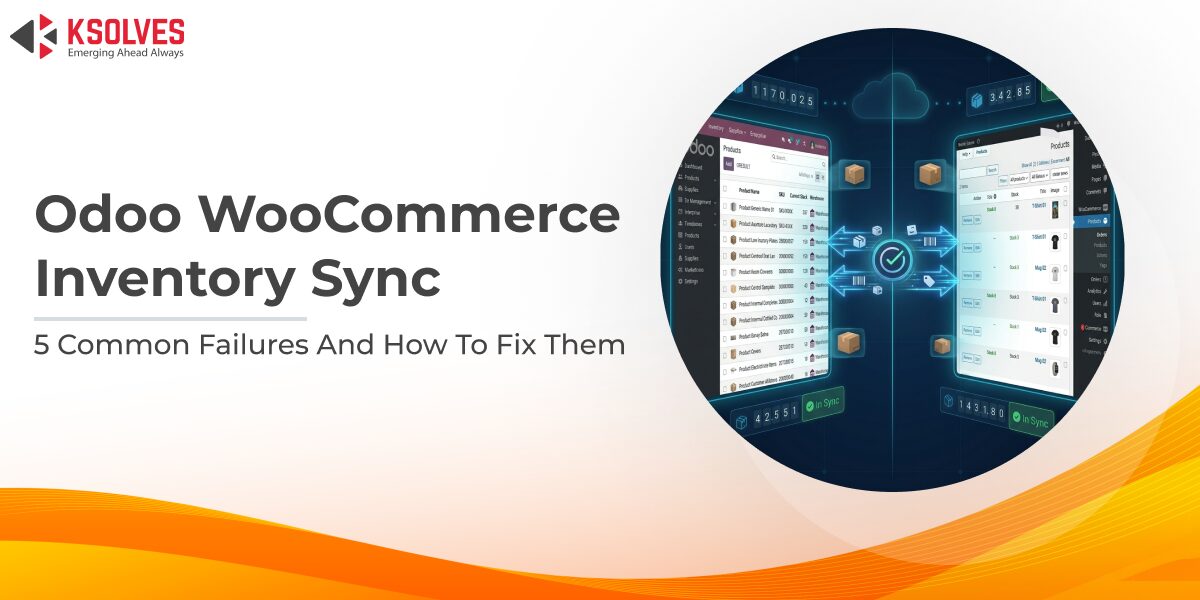
If you run a WooCommerce store on Odoo inventory management, you already know how quickly a sync failure turns into a revenue problem. Your store sold 18 units last night. Your Odoo inventory management still shows 18 in stock. By the time your team catches it, three more orders have landed and you are issuing refunds for stock that does not exist.
This is not an Odoo inventory module problem. The failure lives in the sync layer connecting your Odoo inventory management to WooCommerce, and in most cases, it is one of five misconfiguration patterns. This post covers each one and how the Ksolves WooCommerce Connector is built to handle it.
Why Odoo Inventory Management Sync Fails with WooCommerce
Odoo and WooCommerce have no native awareness of each other. Every stock movement, every order, every product update must be explicitly communicated through a connector that handles variable products, bundled products, multiple warehouses, and order statuses, all structured differently across the two systems. When the connector is misconfigured or a catalog change breaks an assumption it was relying on, your Odoo inventory management stops reflecting reality in WooCommerce.
Problem 1: SKU Mismatches Mean Odoo Inventory Management Never Reaches WooCommerce
The connector links Odoo products to WooCommerce products using the SKU, called Internal Reference in Odoo inventory management. If they do not match exactly, that product sits completely outside the sync while orders keep coming in. The most common cause is variable products where WooCommerce assigns variant-level SKUs but Odoo inventory management only carries a parent-level reference, or bulk imports where the SKU column was simply left blank on one side.
Fix: Export your Odoo inventory management product list with the Internal Reference field and compare it against a WooCommerce SKU export. Any blank or mismatched row will not sync, correct those in Odoo first. The Ksolves WooCommerce Connector lets you map by SKU, barcode, or product name and handles variant-level mapping for variable, grouped, and bundled products accurately, keeping your Odoo inventory management linked to every WooCommerce product without duplicates or silent gaps. See how this fits the full product catalog sync workflow in our guide to e-commerce management with the Odoo WooCommerce Connector.
Problem 2: Webhooks Are Misconfigured or Silently Disabled
Real-time Odoo inventory management sync depends on webhooks firing correctly on every order and product event. A domain change after server migration, a webhook disabled during troubleshooting and never re-enabled, or a silent WooCommerce plugin update can break webhook delivery completely, and WooCommerce will not alert you. Your Odoo inventory management falls further behind with every order that goes unnoticed.
Fix: The Ksolves WooCommerce Connector shows the active state of every webhook operation; Order Create, Order Update, Product Create, Product Update – directly inside Odoo, with a full delivery log. After any migration or plugin update, a two-minute check of the webhook panel confirms your Odoo inventory management integration is running cleanly. No need to open WooCommerce’s backend settings.
Problem 3: The Wrong Warehouse Is Feeding Odoo Inventory Management Data to WooCommerce
If you run more than one warehouse, the connector needs an explicit instruction about which Odoo inventory management location feeds WooCommerce. Without it, it defaults to the primary warehouse, leaving secondary warehouse stock ignored, or worse, counting transit stock as available and letting customers buy units that cannot ship.
Fix: In the Ksolves WooCommerce Connector’s inventory settings, define exactly which Odoo inventory management locations contribute to the WooCommerce stock figure, one warehouse, two, or a combined total. After any location change, trigger a manual sync to overwrite stale WooCommerce figures before real-time Odoo inventory management updates take over. For businesses managing multiple stores across different locations, our post on building a profitable multi-vendor store with the Odoo WooCommerce Connector covers multi-instance warehouse configuration in full.
Problem 4: Scheduled Sync Jobs Have Stalled and Odoo Inventory Management Is Running Behind
Bulk Odoo inventory management updates sync on a schedule through Odoo’s cron jobs, not webhooks. These scheduled actions are the first thing to go quietly inactive during Odoo upgrades, and at a default one-hour interval, a high-volume WooCommerce store can be an hour behind on every stock deduction.
Fix: Go to Settings > Technical > Automation > Scheduled Actions and confirm all connector jobs are active. Reset any job whose Next Execution Time is stuck in the past. For high-volume stores, set the interval to 15 minutes or less and supplement with webhook-driven updates for order events. The Ksolves WooCommerce Connector processes over 45,000 orders per hour, so the connector is never your Odoo inventory management bottleneck, the cron schedule is. See how the fastest WooCommerce Connector transformed inventory operations for a fashion retailer doing 800–1,000 daily orders.
Problem 5: Bidirectional Sync Is Creating Odoo Inventory Management Overwrite Loops
When both Odoo inventory management and WooCommerce can write stock levels without conflict rules, they overwrite each other. Someone edits stock in WooCommerce directly, that edit syncs back to Odoo and overwrites the correct figure; it becomes a habit, and the connector faithfully executes every overwrite.
Fix: For most businesses the correct setup is one-directional: Odoo inventory management pushes stock to WooCommerce, WooCommerce sends orders back to Odoo. The Ksolves WooCommerce Connector lets you configure this explicitly. If you genuinely need bidirectional flow, common in wholesale operations, the Allow Bidirectional Inventory Sync setting combined with Odoo Automation Rules lets you define timestamp-based conflict resolution so the connector always resolves predictably. Our guide on syncing Odoo with WooCommerce for wholesale operations covers this configuration in detail.
When Errors Still Appear, the AI Error Explainer Tells You Exactly What Broke
Even a well-configured connector produces occasional sync errors. The standard experience is a raw Python error string that means nothing to the ops manager reading it, and a support ticket before anything moves.
The Ksolves WooCommerce Connector now includes an AI-powered Error Explainer; built on Azure OpenAI, directly inside the failed logs view. When a sync operation fails, it automatically generates a plain-language explanation of what went wrong and what steps to take to resolve it. Non-technical staff can read a failed log and act on it without escalating to a developer. Debugging time drops by up to 70%, and recurring error patterns get flagged before they become a habit.
Conclusion
Every failure here is a configuration problem, not a platform limitation. With the Ksolves WooCommerce Connector, most are fixable without developer involvement, and when something does go wrong, the AI Error Explainer closes the gap between a failed log and a resolved issue.
Explore the Ksolves WooCommerce Connector on the Odoo App Store, or get in touch with the Ksolves team to review your current sync setup.































AUTHOR
Odoo
Share with