



How Custom List Views Reduce Manual Work and Errors in Odoo Back-Office Operations
Odoo
5 MIN READ
March 10, 2026

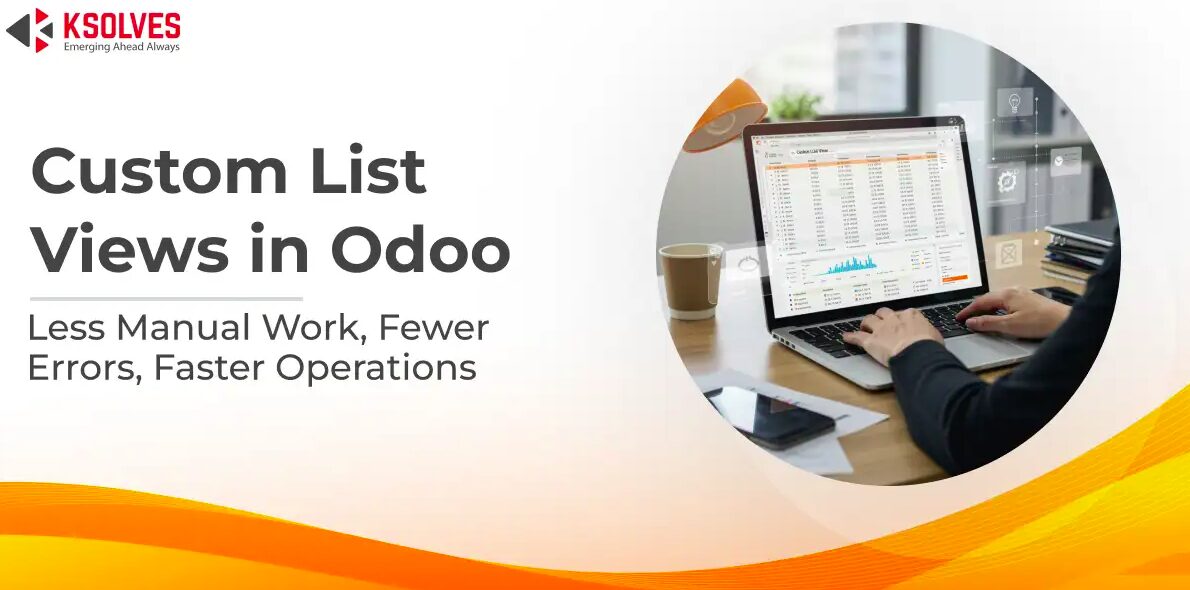
Open any default Odoo list view mid-day and the bottleneck is immediate: two hundred records with no context, half of them irrelevant to the task at hand. This is “data clutter.” To compensate, an accounts payable clerk often spends their first ten minutes manually applying the same filters, grouping by vendor and sorting by date, just to find a single actionable invoice. This cycle repeats across procurement and warehouse teams, creating a quiet drain on operational capacity that standard ERP audits often miss.
The problem isn’t missing data; it’s UI friction caused by a rigid interface that forces experts to be “overtaken by irrelevant data”. Teams naturally resist these default views because they necessitate excessive scrolling and manual navigation. As an Odoo Gold Partner, we recognize that this friction invites manual entry errors that jeopardize regulatory compliance and data integrity. By transitioning to custom list views, enterprises replace repetitive searching with fewer clicks, inline editing, and bulk updates. This shift allows back-office teams to stop fighting their tools and achieve faster reconciliation before lunch.
Where Teams Actually Feel the Difference
Finance
In a default Odoo accounting view, invoices sit in a flat list ordered by entry date. For a team managing 300-plus vendor invoices monthly, finding what’s overdue, what’s disputed, and what’s due this week requires manual filtering every single time.
A custom list view for accounts payable can surface only open invoices, grouped by due date, with a visual indicator on anything past terms. The team stops hunting. They start actioning. And because the view removes the irrelevant records entirely, the chances of an overdue invoice being missed, or worse, paid twice through confusion , drop considerably.
Also Read – Transforming Financial Data Management in Odoo with List View Manager
Inventory
Warehouse teams using default Odoo inventory views frequently export data to spreadsheets just to get a usable picture of stock levels. This is a telling sign: when people are exporting from an ERP to work in Excel, the ERP view isn’t doing its job.
A custom list view for inventory can be configured to show only products below reorder threshold, grouped by internal category, with on-hand quantity and last movement date as visible columns. Everything a warehouse manager needs for a morning stock review, in one view, inside Odoo, without a single export.
Also Read – Boosting Efficiency in Logistics and Supply Chain with List View Manager in Odoo
Procurement
RFQ management is one of the highest-friction areas in Odoo back-office operations. Procurement teams deal with requests across multiple vendors, categories, and urgency levels, and the default view treats all of them equally.
A role-specific custom view filtered by active RFQs, grouped by vendor, sorted by expected delivery date gives a procurement coordinator a prioritized working queue from the moment they log in. Batch actions, sending reminders, confirming orders, updating statuses across multiple records simultaneously, then reducing what used to be ten individual actions to one.
How Far You Can Take It, And When You Need Help
Odoo’s native interface allows meaningful list view customization without touching a line of code. Saved filters, custom group-by logic, and column visibility adjustments are all accessible to an admin user with the right permissions. For teams with relatively standard workflows, this is often enough to see immediate improvement.
Where native configuration reaches its limits is in role-based view enforcement, domain-level filtering logic, and custom column rendering, cases where what needs to appear in the list view depends on conditional business rules rather than simple field values. That’s when working with an experienced Odoo development team adds real leverage. Not to build something complex, but to make sure the configuration holds at scale and doesn’t require manual maintenance every time the team structure changes.
The underlying principle stays the same either way: the closer a list view is to how a specific role actually works, the less time that role spends managing the tool instead of doing the job.
FAQ
What are custom list views in Odoo?
Custom list views in Odoo are configured versions of the default module record tables, filtered, grouped, and structured to match a specific team’s operational workflow rather than showing all records by default.
How do custom list views reduce manual errors in ERP?
By surfacing only the records relevant to a specific task or role, custom list views reduce the cognitive load of navigating large datasets. Fewer irrelevant records means fewer instances of acting on the wrong record, missing a critical item, or duplicating work.
Do I need a developer to customize Odoo list views?
Basic customization, saved filters, group-by logic, column visibility, can be done natively by an Odoo admin. More advanced configurations involving domain rules, role-based enforcement, or conditional display logic typically require developer involvement to implement correctly and maintain reliably.

































AUTHOR
Odoo
Share with